
Your account holds important information — your property listings, booking history, and personal details.
Two-step login (also called two-factor authentication, or 2FA) adds a simple extra layer of protection so that even if someone gets hold of your password, they still can't get in.
Here's how to set it up in just a few minutes.
What is two-step login?
When you log in normally, you only use your password. With two-step login enabled, after entering your password, you'll also be asked to confirm it's really you — using a second, temporary code. Think of it like a lock that needs two keys instead of one.
You have two options for how to receive that second code:
Option 1 — Email verification code
Best for: No apps to download, no extra setup.
Every time you log in, we'll send a one-time security code to the email address linked to your account. You simply enter that code, and you're in. The code expires after a short time, so it can't be reused by anyone else.
How to enable it:
- Log in to your EU-Rentals account
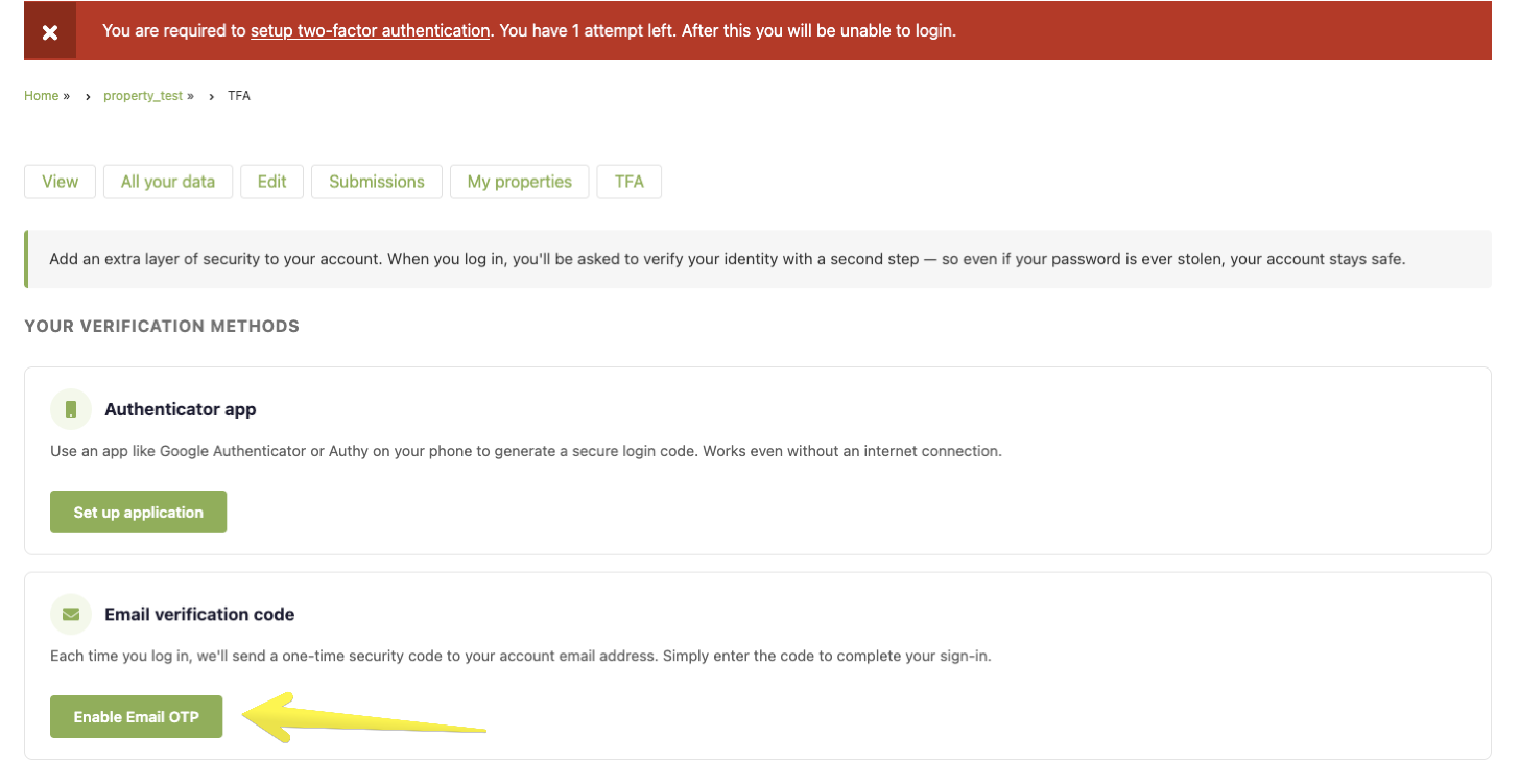
- If this is your first login, you will be redirected to the Two-Factor Authentication (2FA) setup page (see instructions below). If you have already logged in before, go to “My Account” and select “Two-Factor Authentication (TFA)”.
- Under Your verification methods, click Enable Email OTP
- Enter your current password to confirm it's you and click Continue
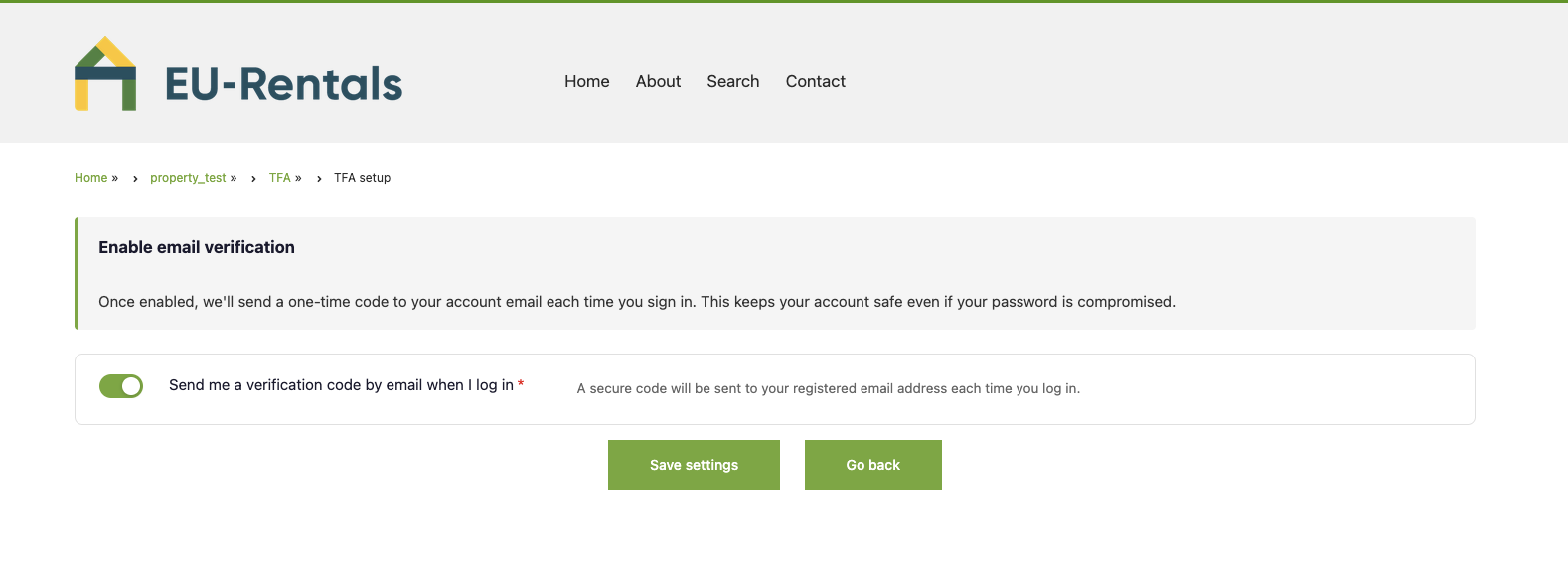
- Switch on "Send me a verification code by email when I log in"
- Click Save settings
That's it — next time you log in, check your inbox for the code.
Option 2 — Authenticator app
Best for: Users who want faster login or don't always have access to their email during login.
An authenticator app on your phone generates a new 6-digit code every 30 seconds. You don't need an internet connection or to wait for an email — just open the app and enter the code shown.
Popular free apps include:
- Google Authenticator (iOS & Android)
- Authy (iOS & Android)
- Microsoft Authenticator (iOS & Android)
How to enable it:
- Download one of the apps above on your phone
- Log in to your EU-Rentals account
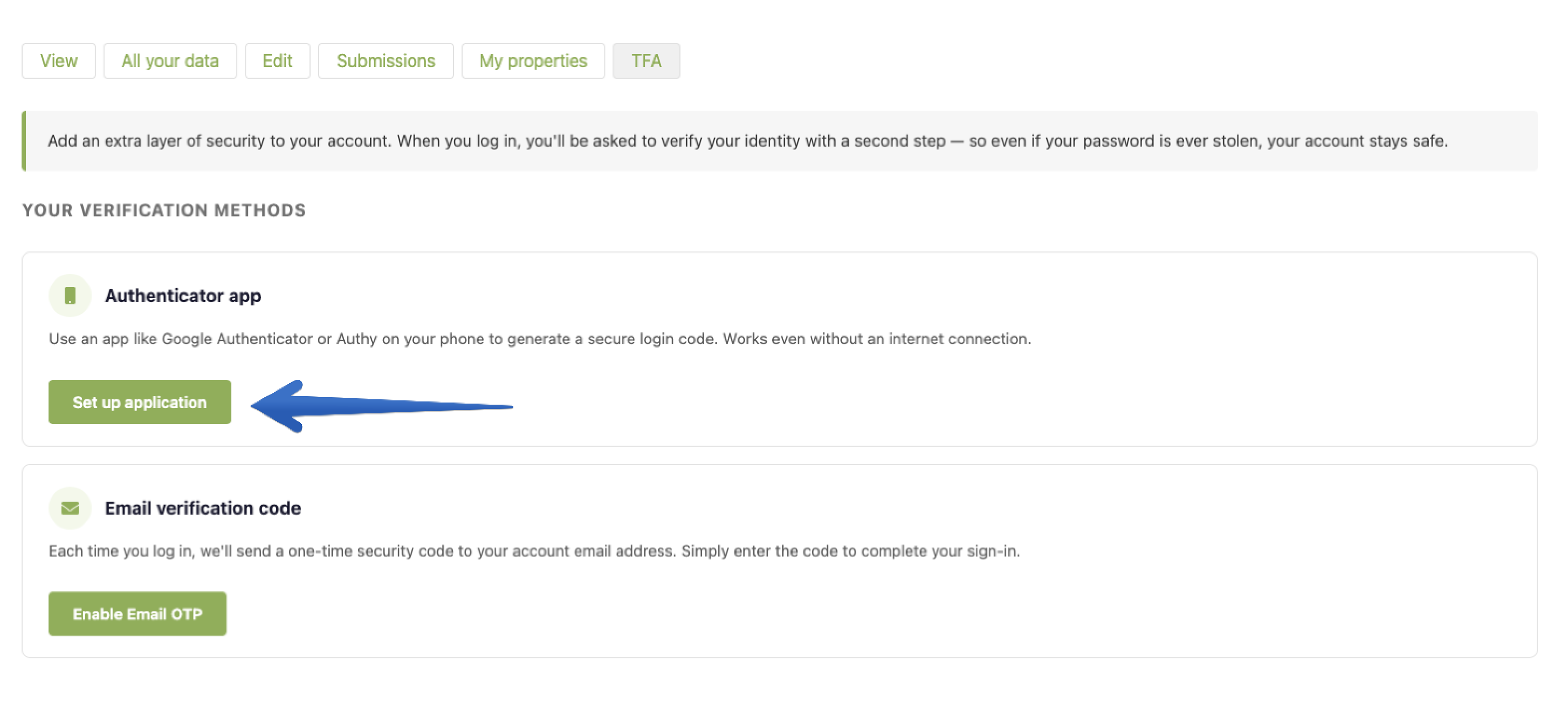
- If this is your first login, you will be redirected to the Two-Factor Authentication (2FA) setup page (see instructions below). If you have already logged in before, go to “My Account” and select “Two-Factor Authentication (TFA)”.
- Under Your verification methods, click Set up application
- Enter your current password and click Continue
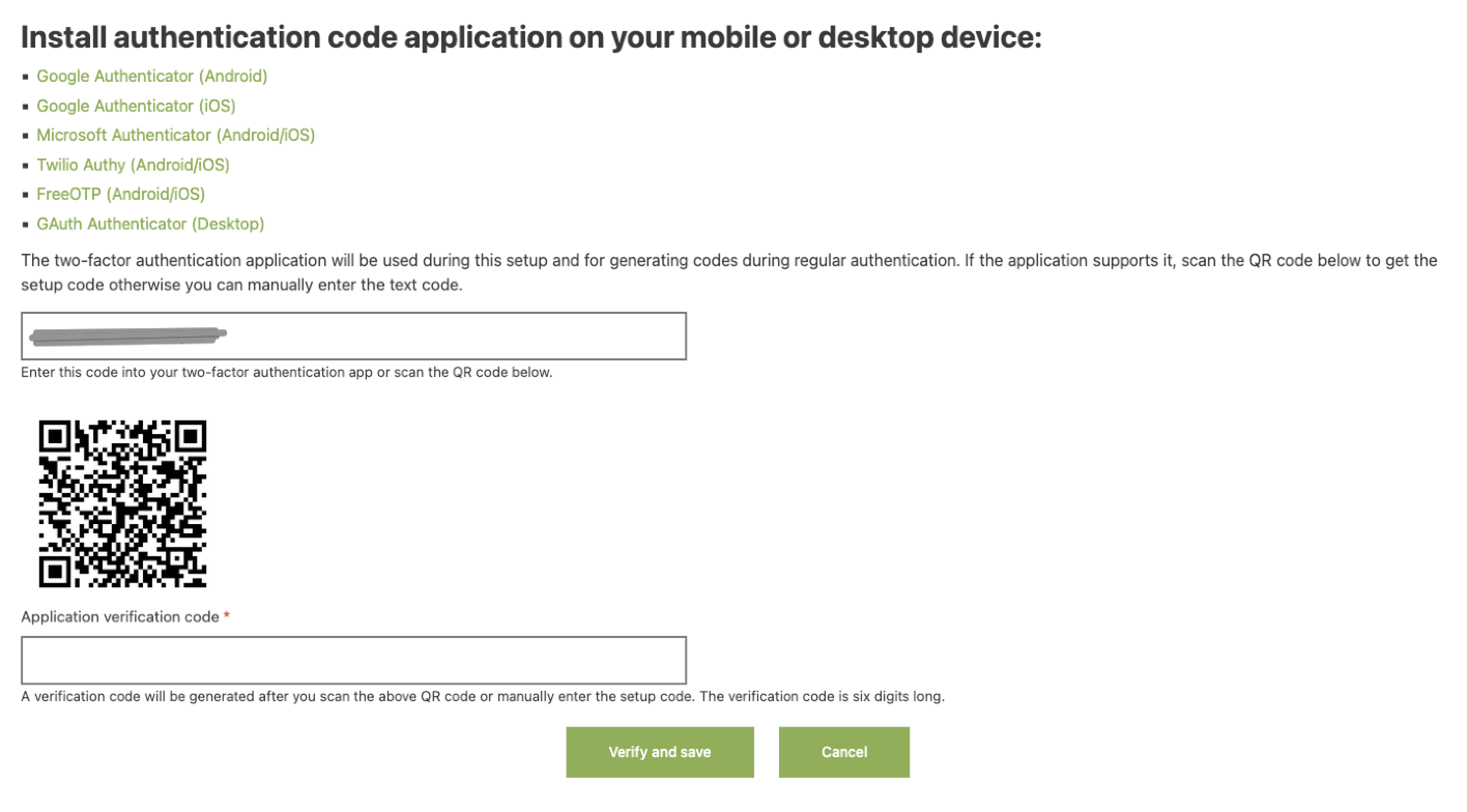
- Open your authenticator app, tap + or Add account, and scan the QR code shown on screen
- Enter the 6-digit code from the app to confirm it's working, then click Save
Which one should I choose?
| Email code | Authenticator app | |
|---|---|---|
| Easy to set up | Yes | Requires app download |
| Works without phone data | Yes (just email) | Yes (app works offline) |
| Fastest to use | Depends on email speed | Instant |
| Recommended for most users | Yes | For more confident users |
You can enable both methods at the same time if you like — that way you always have a backup.
What if I lose access to my email or phone?
If you get locked out, contact our support team, and we'll help you regain access after verifying your identity.
Need help?
If anything looks different on your screen, or you run into any issues during setup, don't hesitate to reach out to us — we're happy to walk you through it.
Two-step login takes less than 2 minutes to set up and provides significantly stronger protection. We strongly recommend that all EU-Rentals users enable it.